
A laptop that looks perfect and costs less than it should usually has a reason. I learned that the hard way, so here are the 5 checks to run before you pay.
5 things to check before you pay, explained in plain English for anyone who has ever nodded at a seller without understanding a word.
Why we wrote this
Buying a laptop should be simple: tell the seller what you need, pay, and go home. In reality, many buyers receive a list of specifications they don't understand and end up trusting whatever the seller says.
That was my story too. My first laptop, a gifted HP, slowed down over time, and I never understood why. When I went to buy my own, I fell in love with a detachable HP laptop, the kind whose screen comes off and works as a tablet. It was beautiful and within my budget, so I didn't properly check the touchscreen, the camera or the processor's generation (we explain that word below). It turned out to be faulty. Later, I found out that a working unit of that same model cost far more than I had been offered. The low price had a reason.
The second time, I took my time, checked everything, and ended up with a Dell touchscreen laptop that was right in every way. I paid more, but nothing was compromised. These are the five things I wish I had known the first time.
1. Check the real price before you pay
Search the laptop's exact model name online, in quotation marks, and see what it normally sells for on Jumia, Konga and trusted UK-used sellers. You will find the model name on the sticker under the laptop, or on the laptop itself in Settings, then System, then About.
If the price you are offered is far lower, ask why. Common reasons are:
An older generation: an older version of the same laptop, which sells cheaper (we explain generations in the next section).
A hidden fault: like a dead touchscreen or a bad camera.
A weak battery: it may only last 30 minutes off the charger.
A replaced part: a screen or battery swapped for a cheap one.
Rule: a price that looks too good usually has a reason.
2. Check the processor and its generation
The processor (also called the CPU) is the laptop's engine. It decides how fast the laptop thinks. Just as a car's engine decides how it drives, a weak processor makes even a beautiful laptop feel slow.
You will usually see Intel (Core i3, i5, i7, or the newer Core Ultra 5 and 7) or AMD (Ryzen 3, 5, 7). The number tells you the tier:
Processor tier | In plain words | Good for |
|---|---|---|
Core i3 or Ryzen 3 | The basic engine | Browsing, documents, movies |
Core i5 or Ryzen 5 | The all-rounder | Work, school, light design, many browser tabs |
Core i7 or Ryzen 7 and above | The strong engine | Video editing, programming, big files |
The generation matters as much as the i-number. Think of a Tokunbo car. A 2022 Toyota Camry and a 2008 Toyota Camry have the same name, but not the same engine, features or reliability. A processor works the same way. A 2021 "Core i5" and a 2015 "Core i5" share a name, but the newer one is usually faster, runs cooler and uses less battery. That is why a new i5 can beat an old i7.
How to read a processor name: let's take Core i5-1135G7 as an example.
i5: the tier, the all-rounder.
11: the generation, so this is an 11th generation chip. For Intel, the generation is the first one or two digits after the dash.
35: the model within that generation. A bigger number usually means a stronger chip.
The letters at the end:
Umeans built to save battery, which is common in slim laptops.Hmeans built for power, as in gaming and creator laptops, which run hotter and drain the battery faster.
Two more examples: in Core i5-8250U, the 8 means 8th generation, and in Core i5-10210U, the 10 means 10th generation. For Intel, aim for 10th generation or newer if your budget allows. Core Ultra chips are all recent, so you don't need to check their generation.
For AMD, the first digit of the number plays the same role. In Ryzen 5 5500U, the first 5 means the 5000 series. A higher first digit means a newer chip, so aim for the 5000 series or higher.
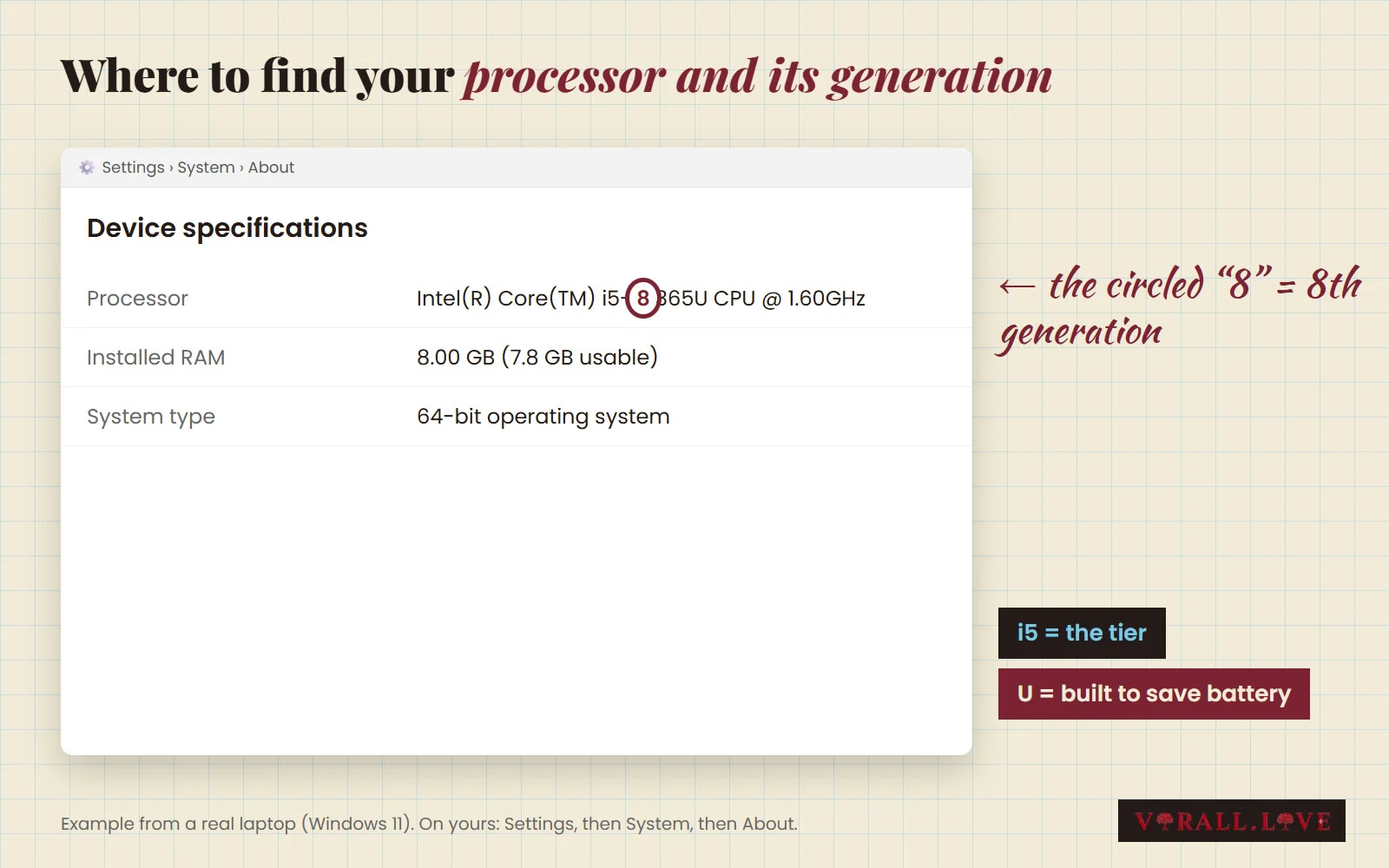
A laptop's Settings about screen showing the processor name, with the generation digits circled.
Rule: always ask for the full processor name, not just "it's an i5".
3. Check the RAM and the storage
RAM is the laptop's working table, like a trader's table at the market. The bigger the table, the more goods you can lay out at once. On a laptop, that means more apps and browser tabs open at the same time without slowing down.
RAM | What it feels like | Good for |
|---|---|---|
4GB | A tiny table, so it struggles with a browser and a few tabs | Too small for most people today |
8GB | A fair-sized table | The minimum for everyday work |
16GB | A big table | Creators, designers, programmers and heavy multitaskers |
(GB means gigabytes, the unit used to measure both RAM and storage.)
Storage is the wardrobe. It is where your files and apps live permanently, even when the laptop is switched off. There are two kinds:
SSD (solid state drive): like a flash drive, with no moving parts inside. The laptop starts quickly and opens apps fast. Choose this.
HDD (hard disk drive): it has a small spinning disc inside, a bit like an old CD player. It is much slower, and it is a common reason old laptops feel slow.
Size: 256GB is a minimum, and 512GB is comfortable for most people. Remember that Windows and your apps take up a big part of the drive before you save a single photo of your own.
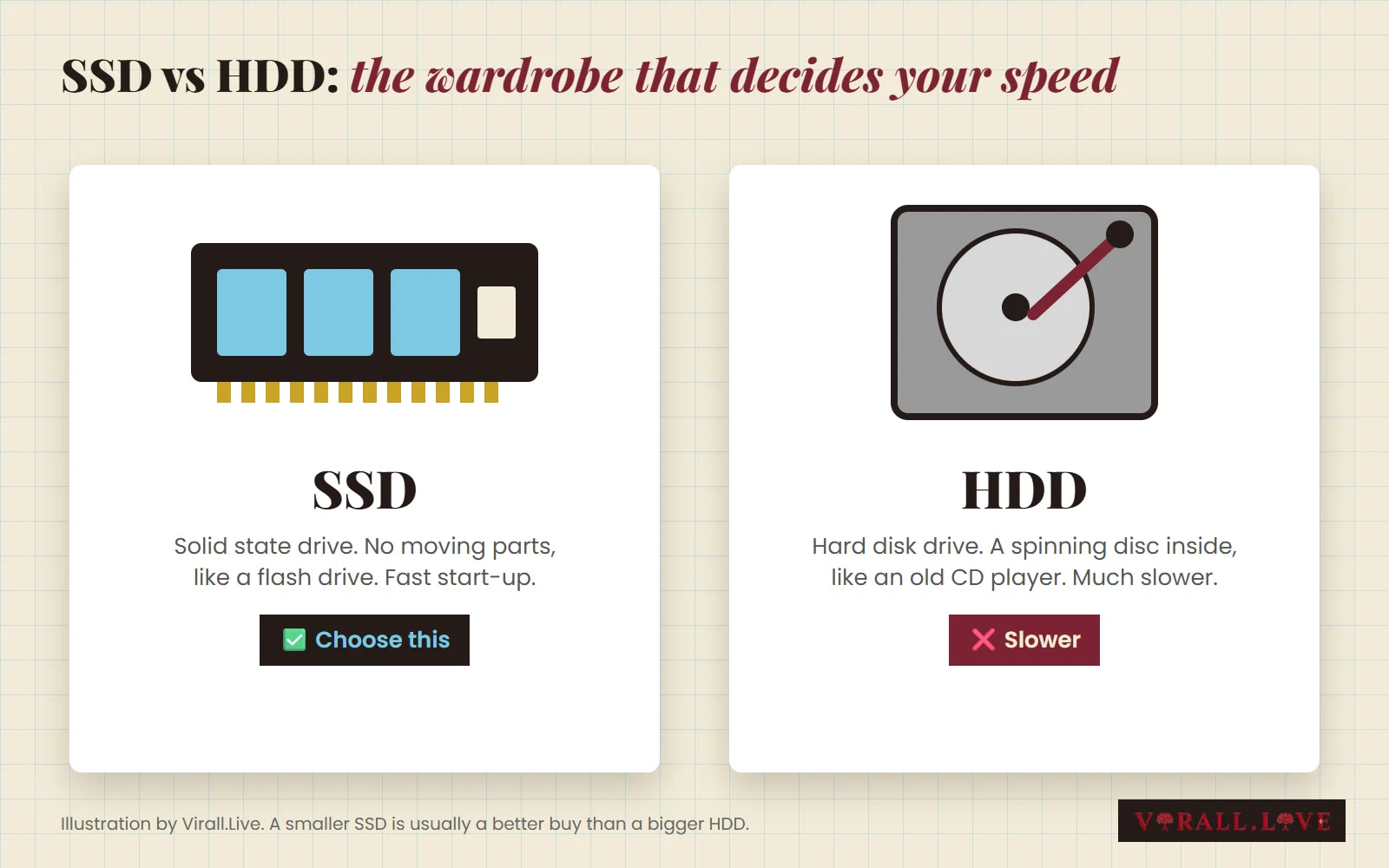
An SSD and an HDD side by side, labelled. Credit the source if the photo is licensed.
Also look at the screen and the ports:
Full HD (1920 x 1080): the screen is made of tiny dots called pixels, and Full HD means 1920 dots across and 1080 down. More dots give a sharper picture. Many cheap laptops use a lower 1366 x 768 screen, which looks blurry by comparison.
Ports: these are the holes you plug things into. USB-A is the wide rectangular one for flash drives. USB-C is the small oval one that can charge the laptop and connect screens. HDMI connects the laptop to a TV or projector. Check that the laptop has the ports you actually use.
Rule: a smaller SSD is usually a better buy than a bigger HDD.
4. Test everything, especially on a UK-used laptop
UK-used laptops can be good value, but test before you pay:
Touchscreen: touch every part of the screen, including the corners and edges.
Camera and microphone: open the Camera app and record a short video, then play it back to check the picture and sound.
Keyboard: type every key, including the numbers.
Ports and charging: plug something into each port, and confirm the charger works.
Processor and RAM: go to Settings, then System, then About, and confirm that the processor and installed RAM match what the seller told you.
Detachable or 2-in-1: a 2-in-1 is a laptop that can also work as a tablet, either because the screen folds all the way back or because it comes off the keyboard. Attach and detach the screen several times and confirm the keyboard works every time.
Windows: "activated" means the Windows on the laptop is genuine and licensed. An unactivated one keeps nagging you, so confirm it before you pay. On Windows 11, go to Settings, then System, then Activation. On Windows 10, go to Settings, then Update & Security, then Activation.
Battery health: a laptop battery wears out with use, like the battery in an old phone. To check it, search for "Command Prompt" on the laptop, type
powercfg /batteryreportand press Enter. Windows saves a file calledbattery-report.htmland tells you where it put it. Open that file in your browser and look for two lines:Design capacity: what the battery could hold when it was new.
Full charge capacity: what it can hold today.
The closer these two numbers are, the healthier the battery. If today's number is half of the new one, the laptop will run for roughly half as long as it should, and a replacement battery will cost you money. If you often work where light is short, a laptop power bank also helps, and we cover that in our guide to fast-charging power banks.
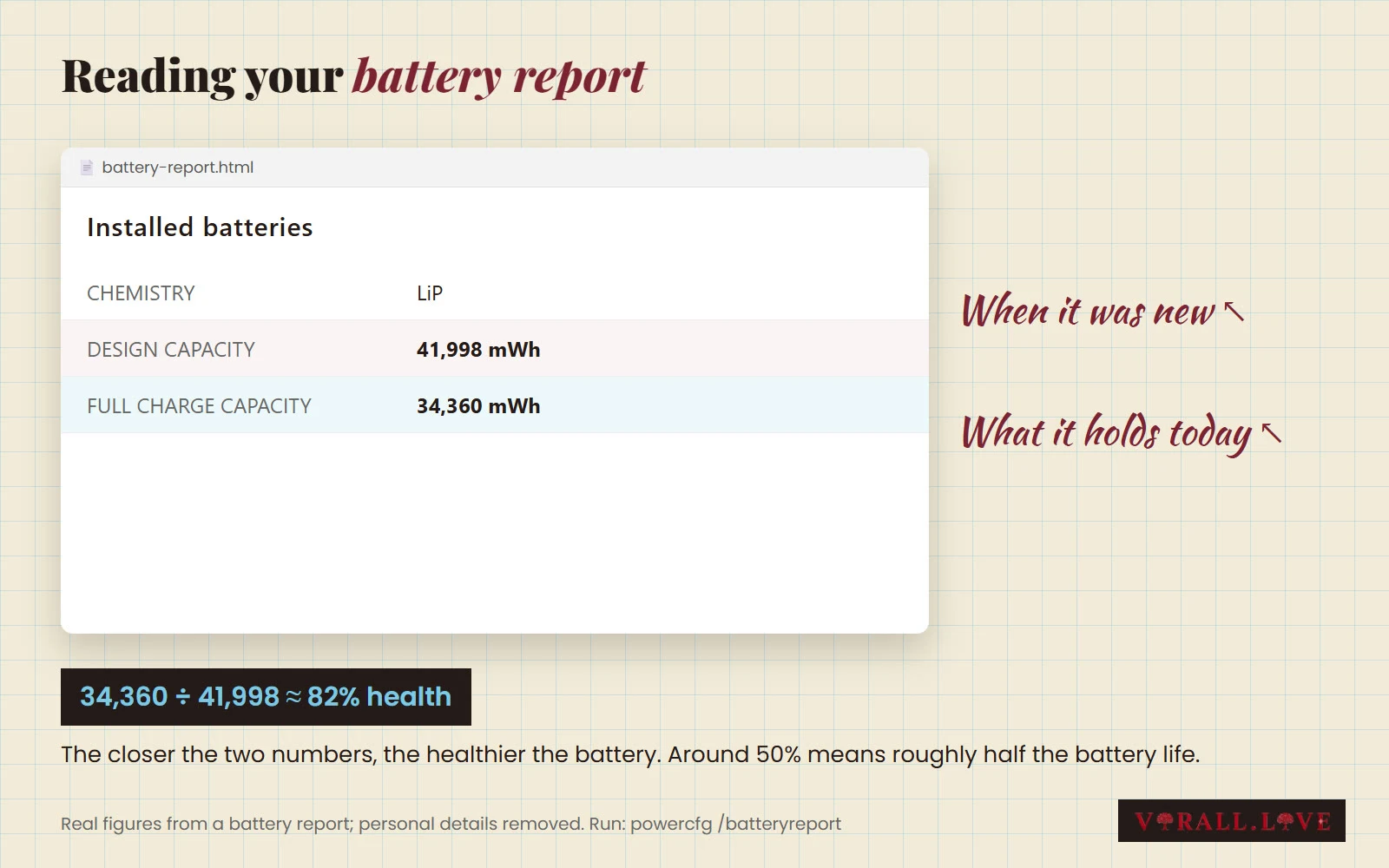
A screenshot of the battery report showing Design capacity and Full charge capacity.
5. Ask the seller the right questions, and don't fall in love first
Ask | A good answer sounds like | Why it matters |
|---|---|---|
What is the full processor name and generation? | A specific answer, e.g. "Core i5-1135G7, 11th gen", not just "it's i5". | The generation is what separates a fast laptop from a slow one with the same name. |
How much RAM, and is the storage SSD or HDD? | "8GB RAM, 256GB SSD." | These two decide how fast the laptop feels every day. |
Is it new or UK-used? Has any part been replaced or repaired? | A clear answer. Hesitation is a warning sign. | Swapped parts are a common reason for a low price. |
What is the battery health? | A seller willing to show you the battery report. | A weak battery means you are tied to the socket, and NEPA does not help. |
Can I test it before paying? | "Yes." Walk away from anyone who refuses. | A seller with nothing to hide has no reason to stop you. |
Is there a warranty or return period? | Any written period, even a few days, is better than none. | It gives you somewhere to go if a fault shows up later. |
And one last thing: liking how a laptop looks is fine, but test it as if you don't like it yet. Your feelings should come after the checklist, not before.
What sellers push that you can ignore
"It's an i7!" Not if it is an old generation. An older i7 can be slower than a newer i5.
"1TB storage!" Not if it is a slow HDD. A smaller SSD is often better.
"It's slim and fine." Looks are not specs.
"Gaming laptop" when you don't game. You may pay for power you will never use, with more weight and a shorter battery life.
Jargon buster
Word | In plain words |
|---|---|
Processor (CPU) | The laptop's engine and brain |
Generation | The "model year" of the processor |
RAM | The working table, for what is open right now |
Storage | The wardrobe, where files and apps live permanently |
SSD | Fast storage with no moving parts, like a flash drive |
HDD | Older, slower storage with a spinning disc inside |
GB | Gigabytes, the unit for RAM and storage |
Full HD | A sharp screen, 1920 dots across and 1080 down |
USB-C | The small oval port that can charge and connect screens |
HDMI | The port for connecting a TV or projector |
2-in-1 | A laptop that can also work as a tablet |
Final word
You don't need to be a tech expert to buy a good laptop. Check the real price, the processor and its generation, the RAM and storage, test everything, and ask the right questions. Take your time. The right laptop is worth the wait.
Have you ever bought a laptop that disappointed you? Tell us what happened in the comments.
Prices change often, so this guide does not list them. Check the current price of any model on the day you buy.
- ##laptop buying guide
- ##how to buy a laptop in nigeria
- ##uk used laptop
- ##laptop specs explained
- ##processor generation
- ##ram and ssd
- ##laptop battery health
- ##buyer guide
Discussion
Log in to join the discussion.
- Loading comments…